What Optimized Battery Charging Does—and What to Check
A delayed full charge can reflect a supported charging feature or a temperature-related pause. Use the device’s message, model, and settings to distinguish the explanations before changing your charging routine.
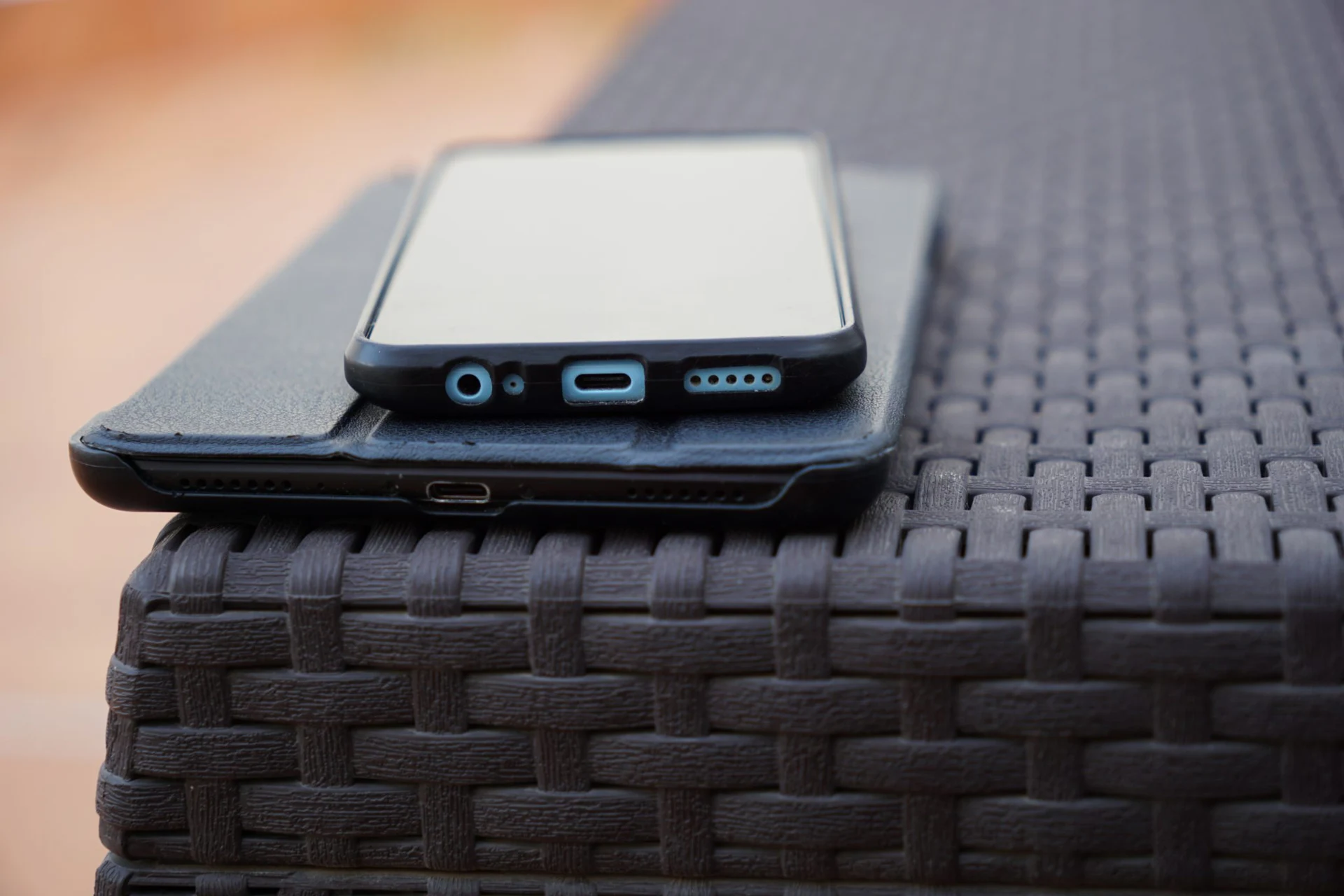
Your device is connected to power, but the battery has not reached full charge. Before changing a setting, write down three things: the device model, the battery percentage, and any charging message on the screen. That small record is more useful than assuming every pause has the same cause.
Apple describes charging features that can defer a full charge according to daily use. It also describes temporary pauses in extreme temperature conditions. The practical job is to identify the explanation your device actually gives, then decide whether its charging schedule fits your next use.
Understand what optimized charging changes
Apple says Optimized Battery Charging adapts to your daily charging routine and may defer charging to 100% until shortly before you need to use the battery. Its purpose is to preserve battery lifespan over time.
That is different from how long a device runs between charges. Apple calls the time between recharges “battery life” and the time before a battery needs replacement “battery lifespan.” A feature intended to support lifespan does not promise a particular number of extra hours on your next outing.
Apple lists Optimized Battery Charging availability from iOS 13, watchOS 7, and macOS Big Sur. Treat those as platform milestones, then check your own model, installed software, and available settings. They do not establish that every device exposes identical controls or behaves identically.
A delayed full charge can therefore be consistent with an intended feature. The percentage alone, however, cannot tell you which feature is active or why the device has paused.
Separate the charging scenarios
Use this table to organize what you see. The observations are illustrative; they are not diagnoses based on a percentage.
| Observed situation | Relevant feature or condition | Apple’s explanation and practical check |
|---|---|---|
| Full charge appears delayed during a familiar routine | Optimized Battery Charging, where supported | May defer charging to 100% until shortly before expected use; check the device’s message and settings. |
| An Apple Watch Ultra does not always follow the same full-charge pattern | Optimized Charge Limit | Learns when to use an optimized limit and when to allow a full charge; verify the model and displayed explanation. |
| The device reports charging paused because of temperature | Temperature-related charging pause | Charging may pause in extreme temperature conditions and resume when battery temperature returns to its normal operating range. |
| A connected device loses charge while a computer sleeps | Computer power state | Apple warns this can happen when charging from a computer that is off, asleep, or in standby; check its power state. |
Do not borrow an explanation from another row simply because it sounds reassuring. A temperature message deserves to be read as a temperature message, while a quiet pause without an explanation remains an observation to investigate.
Read the message before changing settings
Start with the charging information visible on your device. Copy the wording rather than summarizing it as “battery problem.” A message about delayed completion contains different information from one about temperature.
Apple says that, starting in iOS 16, a temperature-related charging pause may produce a lock-screen notification. Starting in iOS 16 and watchOS 9, paused-charging information is also available in Settings > Battery. The presence and wording of information on your device should guide the next check.
If you find a charging feature in settings, read its explanation before changing it. Record the original setting so you can revisit your choice later. Do not follow a menu path for a different device merely because both products carry the Apple name.
This is a settings inspection, not a repair procedure. If the device provides no clear explanation, keep the uncertainty in your notes rather than assigning it to optimized charging by default.
Use a departure-time worksheet
Imagine a phone usually stays connected overnight, but tomorrow you need to leave earlier. This is an illustrative planning exercise: it does not predict when that phone will finish charging.
- Device and software: record the actual model and installed version.
- Usual routine: write when you normally connect and disconnect it.
- Next departure: record the time you need to take it with you.
- Current observation: note the time, percentage, and exact message.
- Available control: record only the charging options actually shown.
- Follow-up: check again before departure and note the result.
A mismatch between tomorrow’s departure and your usual routine is a reason to inspect the available controls. It does not prove the feature has failed. Equally, do not assume a learned routine guarantees readiness for an unusual day.
If travel is the reason for the change, use your schedule alongside a charging kit planned around the devices you own. Keep the charging-feature decision and the packing decision specific to each device.
Know what these checks cannot establish
One evening’s observation cannot measure how much a charging feature has extended battery lifespan. Apple describes the intended benefit, but a delayed full charge does not quantify that benefit for your particular battery.
Nor does the Apple explanation establish how a phone or watch from another manufacturer behaves. Check that maker’s feature names, supported models, and instructions rather than transferring Apple’s software versions or Watch Ultra behavior to it.
If you charge an iPhone or Apple Watch through a computer, Apple advises keeping the computer plugged in and powered on. Check that ordinary condition before interpreting a stalled percentage as evidence about an optimized charging feature.
Finish with a usable record: what the device reported, which setting was available, whether you changed it, and what happened before you disconnected. If charging remains unexplained, use those details when seeking device-specific support. They give you a concrete starting point without guessing at a battery fault or attempting a repair.
Sources and editorial notes
How to Keep Heat Out of Your Everyday Device-Charging Routine
Compare a sunny windowsill, a bedside charging spot and an open desk. This practical placement check helps you notice avoidable heat exposure while…
Google Photos: Check Device and Account Copies Before Deleting
A photo visible on your phone does not answer every question about where it is stored. Use a copy map and one disposable…

How to Review Large Gmail Attachments Without Losing Useful Messages
Find large Gmail attachments, decide which messages to keep, and verify saved files before deleting anything. A worked review batch separates useful correspondence…