How to Clean a Laptop Screen Without Treating Every Display the Same
Before wiping a laptop screen, identify its finish and check the instructions for that exact model. Use this decision tree to separate preparation, ordinary screen care and coatings that need a different approach.
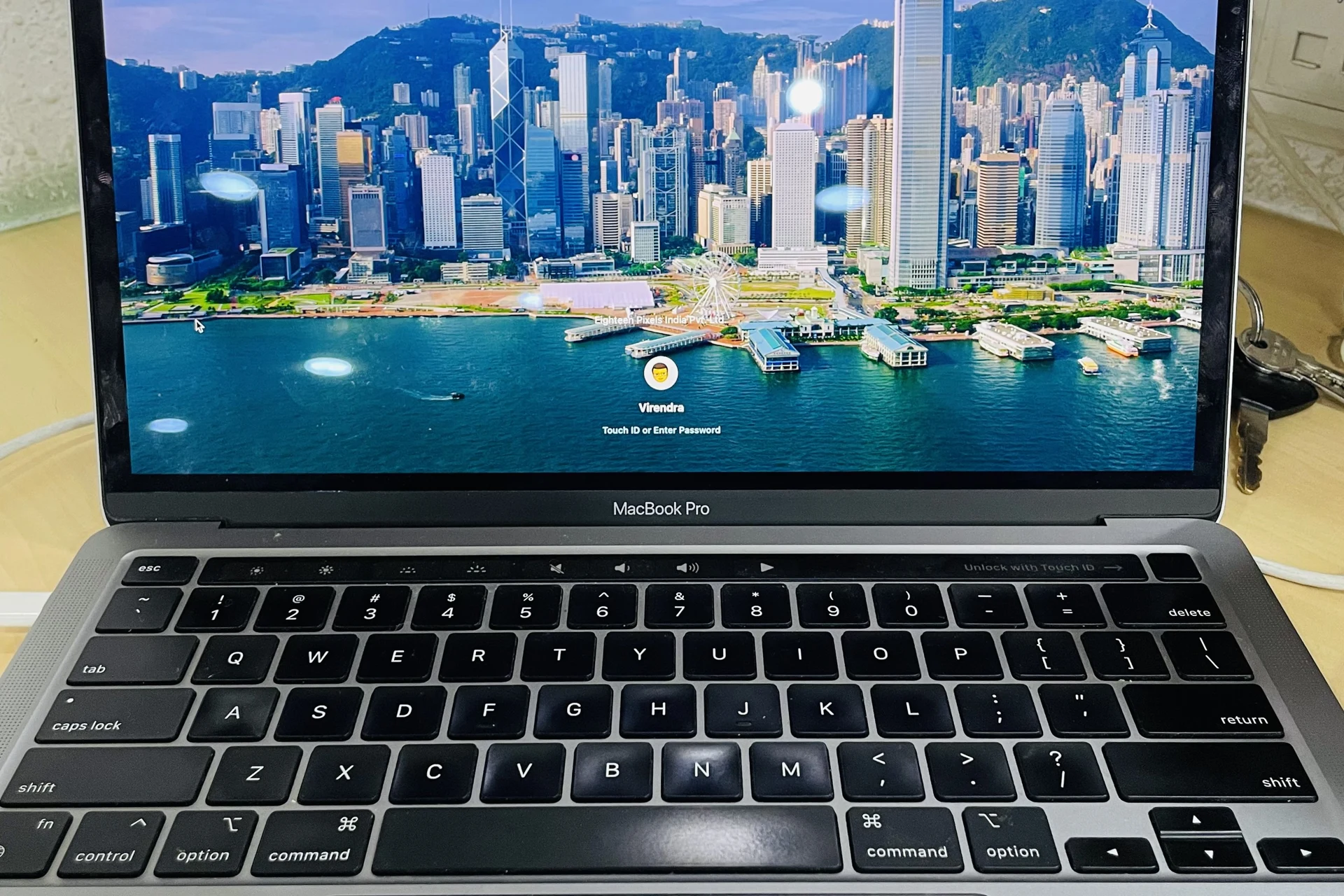
A laptop screen has a fingerprint near the camera. Beside it sit a microfiber cloth, a bottle of screen cleaner and an alcohol wipe. Which should you use? The first useful step is to identify the display surface. The answer can change even within one manufacturer’s range.
Start with a short care note: laptop model, display finish and the cleaning instructions that apply to both. That gives you a decision you can repeat without guessing every time a smudge appears.
Identify the screen before choosing a cleaner
Find your laptop’s model in its settings, purchase record or product documentation. Then check whether its display has a named surface treatment. If you added a screen protector, identify that separately: the surface your cloth touches may be an accessory rather than the laptop’s original display.
Do not infer cleaning requirements from appearance alone. A screen that looks matte does not, by itself, tell you which cleaning liquid its manufacturer permits. Likewise, a cloth labelled for screens does not establish that every cleaner beside it suits your display.
Apple provides a useful example of why this check matters. Its Mac laptop instructions direct owners of nano-texture displays to separate cleaning guidance. The ordinary MacBook screen routine should therefore not be carried across to that finish.
For a laptop from another manufacturer, use that manufacturer’s instructions for the model and surface. Apple’s permissions apply to the products it identifies; they are not a compatibility list for every laptop.
Use a finish-first decision tree
Work through these questions before putting anything on the cloth. This is a practical sorting tool, with a deliberate pause wherever the surface remains uncertain.
- Do you know the exact laptop and display type? If not, find those details before selecting a liquid.
- Is there a protector or specialist finish? Follow the instructions for that surface. For an Apple nano-texture display, use its dedicated care guidance.
- Do the applicable instructions allow your cloth and liquid? Check both. Permission to use water does not automatically permit a bottled screen cleaner.
- Is the mark ordinary surface dirt? Continue only within the stated cleaning method. A persistent mark is not permission to increase pressure or try stronger chemicals.
Keep the result somewhere convenient. A note reading “model confirmed; finish confirmed; water permitted on cloth” is more useful than a drawer full of cleaning products whose suitability you have not checked.
Prepare the laptop and cloth
For the MacBook, MacBook Pro and MacBook Air models covered by Apple’s ordinary screen instructions, shut down the computer and unplug the power adapter first. Apple’s general preparation guidance also says to unplug external power sources, devices and cables.
Choose a clean, soft, lint-free cloth. Apple advises against abrasive cloths, towels, paper towels and similar materials. “Microfiber” on the packaging is not a reason to overlook visible debris or a rough edge; inspect the cloth before using it.
Set the laptop on a stable surface and keep the cleaning bottle away from it while preparing the cloth. That placement is a simple organisational choice: it makes it easier to dampen the cloth without spraying toward the computer.
If your laptop shares a desk with a separate monitor, record its care instructions separately. A laptop and desktop display setup can involve different surfaces, even when both screens serve the same work.
Follow the narrowest applicable cleaning method
For the ordinary Mac laptop screen routine described by Apple, dampen a soft, lint-free cloth with water only, then use it to clean the screen. Do not spray liquid directly onto the computer, and keep moisture out of openings.
Apple separately permits a cloth moistened with a 70-percent isopropyl alcohol solution for hard-to-remove smudges or fingerprints on the display or enclosure of its Mac laptops. Treat that as a specific permission for the covered product and surface. It does not establish a routine for another brand, a screen protector or nano-texture glass.
Apple also advises against excessive wiping. If the mark remains after gentle cleaning within the applicable instructions, stop and reassess rather than repeating the same movement indefinitely.
A worked example: you identify a MacBook Air without a specialist display finish, confirm its screen instructions and find one fingerprint. You shut it down, disconnect it and use the water-dampened cloth method. If the fingerprint disappears, the job is finished; there is no reason to add another product.
Make a care card with a clear stopping point
Copy these fields into a note and fill them in for your own machine:
- Device and finish: exact model, display option and any protector.
- Permitted cloth: wording from the applicable care instructions.
- Permitted liquid: name and concentration, if specified.
- Preparation: shutdown and disconnection steps.
- Stop point: unidentified surface, persistent mark or suspected damage.
This routine covers surface cleaning. It does not diagnose scratches, coating changes or marks beneath the display surface. If a mark does not respond to the permitted method, ask the manufacturer for guidance before trying another substance. If liquid enters an Apple product, Apple directs owners to an Apple Store or Apple Authorized Service Provider promptly. Do not turn a cleaning session into an attempt to reach inside the laptop.
Sources and editorial notes
Clean Your Phone and Case as Two Different Materials
A phone and its removable case can need different care. Build a two-column care card, identify the case material and keep Apple’s material-specific…

Washing a Down Jacket: Plan the Drying Stage Before You Start
Before washing a down jacket, confirm its permitted drying method, arrange equipment and leave time for checks. Use a preparation timeline and observation…
Putting a Spare Device Away for Months: Battery Storage Basics
A spare device needs more than an empty drawer. Build a storage record that captures its exact model, manufacturer instructions, charge preparation, location…